POSdocumentation
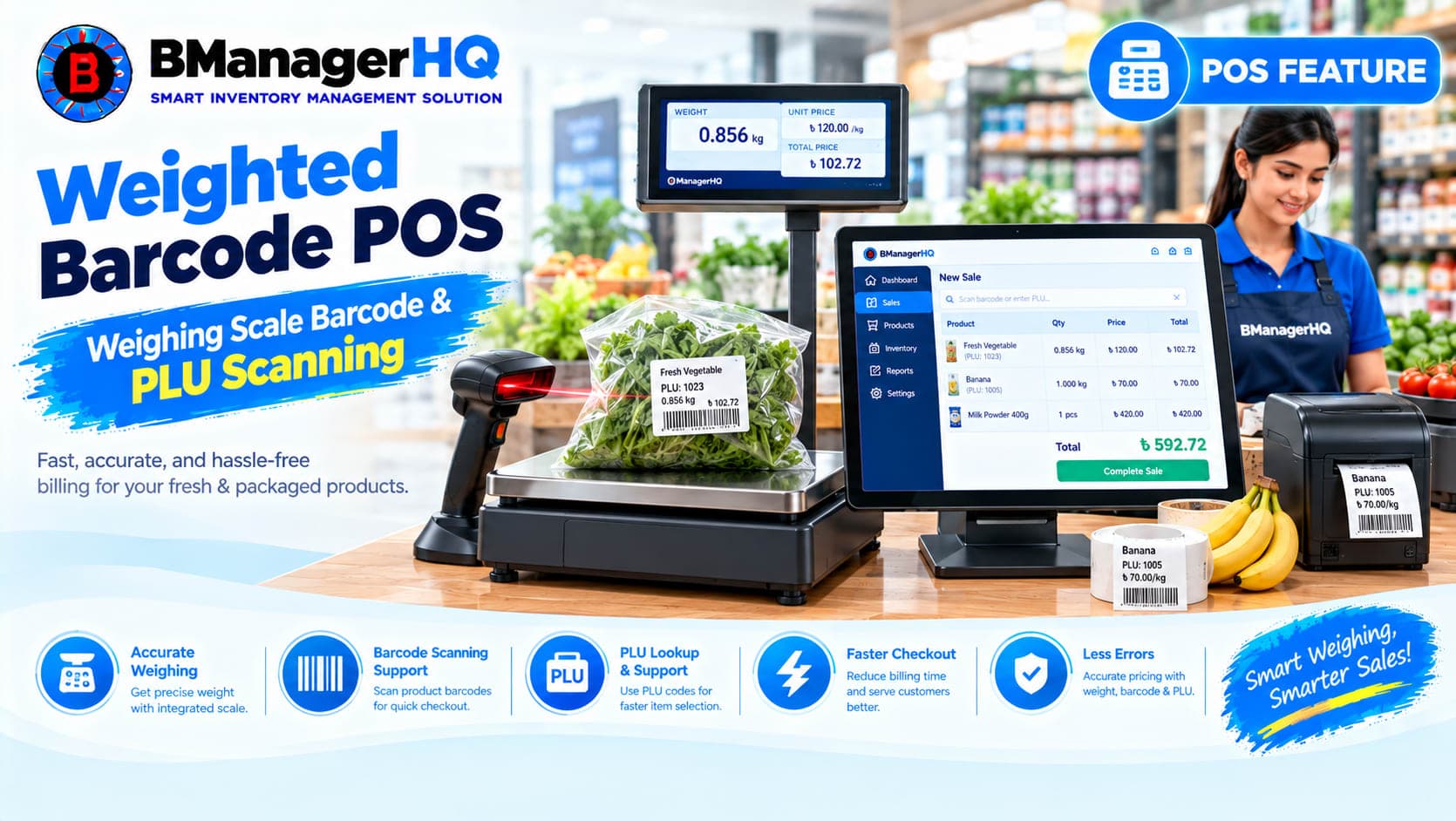
Weighted Barcode POS | Weighing Scale Barcode & PLU Scanning
Content type
Documentation
Topic
POS
Content type
Documentation
Topic
POS
Published
Keywords
BManagerHQ POS supports weighted barcode scanning at checkout, allowing cashiers to sell products by weight using barcode labels printed by a compatible weighing scale.
When a cashier scans a scale-printed barcode label, BManagerHQ POS reads the product code and encoded weight or price from the barcode and automatically adds the corresponding weighted item to the cart.
This makes checkout faster for products commonly sold by weight, such as items in supermarkets, grocery stores, and retail businesses.
Important: BManagerHQ supports barcode-label parsing. It does not directly connect to, control, or operate the weighing scale. The weighing scale must be configured by the scale vendor or a qualified technician to print labels using a barcode format supported by BManagerHQ.
How Weighted Barcode Scanning Works
The workflow is simple:
This allows the cashier to process scale-labeled products without manually entering the weight during checkout.
Supported Weighted Barcode Format
BManagerHQ currently expects a 13-digit barcode for weighted barcode scanning.
The barcode contains four parts:
Part | Format | Purpose |
Prefix | 20–29 | Identifies the barcode type |
PLU / Product Code | 5 digits | Must match the product SKU |
Encoded Value | 5 digits | Contains the encoded weight or price |
Check Digit | 1 digit | Final barcode validation digit |
The complete barcode therefore follows this general structure:
Prefix + 5-Digit PLU + 5-Digit Encoded Value + Check Digit
For example, a supported barcode may follow the structural pattern:
2X + XXXXX + XXXXX + X
The exact encoded value depends on the barcode configuration used by the weighing scale.
Weight and Price Prefixes
BManagerHQ supports prefixes from 20 through 29.
Prefixes 27, 28, and 29 indicate that the barcode contains an encoded price.
The other supported prefixes indicate an encoded weight.
Therefore, the scale's barcode configuration must use the appropriate prefix according to whether the label is encoding weight or price.
Product Setup Requirements
For weighted barcode scanning to work correctly, the product must be configured appropriately in BManagerHQ.
1. Product SKU Must Match the 5-Digit PLU
The 5-digit PLU encoded in the barcode must match the product's SKU in BManagerHQ.
For example, if the barcode contains the PLU:
12345
the corresponding product should have:
SKU: 12345
If the PLU and SKU do not match, BManagerHQ cannot correctly identify the product from the barcode.
2. Use Kilograms as the Product Unit
Weighted products should use:
Unit: Kilograms (kg)
The product should also have a selling price per kilogram.
For example:
3. Maintain Stock in Grams
Although the product is sold using kilograms, weighted product stock should be maintained in grams.
This allows the system to accurately track small quantities of stock.
For example:
When the barcode uses a supported weight prefix, the 5-digit encoded value represents the product's weight according to the barcode configuration.
The POS reads this encoded value and uses it to add the appropriate quantity to the cart.
The actual encoding convention must be configured correctly on the weighing scale.
Because scale configurations can vary, the scale vendor or technician should configure the label format according to the supported BManagerHQ barcode structure.
Prefixes 27–29 indicate an encoded-price barcode.
In this configuration, the barcode contains an encoded selling price rather than an encoded weight.
BManagerHQ reads the encoded value from the barcode and uses it during checkout.
The weighing scale must therefore be configured to generate the appropriate supported 13-digit barcode format.
Example Checkout Workflow
Suppose a supermarket sells apples by weight.
The product is configured as:
A customer purchases 1.250 kg of apples.
The weighing scale weighs the product and prints a barcode label containing the product's PLU and encoded value.
The cashier scans the label.
BManagerHQ then:
Scans Barcode → Identifies Product → Reads Encoded Value → Adds Weighted Item to Cart
The cashier does not need to manually search for the product and enter the quantity.
Requirements for Weighted Barcode Scanning
Before using this feature, make sure:
What BManagerHQ Does Not Do
Weighted barcode scanning should not be confused with direct weighing-scale integration.
BManagerHQ does not directly connect to or control the weighing scale.
BManagerHQ only processes the barcode label after it has been printed by the scale.
The scale is responsible for:
BManagerHQ is responsible for:
If your scale does not generate the required barcode format, contact the scale vendor or technician and request configuration according to BManagerHQ's supported barcode structure.
Weighted barcode scanning is not supported for serialized or batch-tracked products.
Therefore, products using:
should not be configured for weighted barcode checkout.
Troubleshooting Weighted Barcode Scanning
Barcode is not recognized
Check that:
Product is not found
Check the product's SKU in BManagerHQ.
The 5-digit PLU in the barcode must match the product SKU.
Weight is incorrect
Check the weighing scale's barcode configuration.
The scale vendor or technician should verify how the weight is being encoded into the 5-digit value.
Price is incorrect
If the barcode uses an encoded-price prefix, verify that the scale is configured correctly and that the barcode uses one of the supported price prefixes:
27, 28, or 29
Summary
BManagerHQ supports weighted barcode scanning at POS checkout using compatible 13-digit scale-printed barcode labels. The barcode must contain a supported prefix, a 5-digit PLU matching the product SKU, a 5-digit encoded value, and a final check digit. Weight-based products should use Kilograms, have a per-kilogram selling price, and maintain stock in grams.
Remember that BManagerHQ parses the barcode label—it does not directly control or communicate with the weighing scale. The scale must be configured by the vendor or technician to print a supported barcode format.
Weighted barcode scanning allows a POS system to read a barcode label containing a product code and encoded weight or price, then automatically add the weighted product to the checkout cart.
No. BManagerHQ does not directly connect to or control the weighing scale. It reads and parses the barcode label printed by the scale.
BManagerHQ currently supports a 13-digit weighted barcode containing a prefix from 20–29, a 5-digit PLU matching the product SKU, a 5-digit encoded value, and a final check digit.
Prefixes 27, 28, and 29 indicate an encoded price.
Weighted products should use Kilograms (kg) as the product unit, with a selling price per kilogram.
Weighted product stock should be maintained in grams for accurate quantity tracking.
No. Weighted barcode scanning is not supported for serialized products.
No. Weighted barcode scanning is not supported for batch-tracked products.
The weighing scale should be configured by the scale vendor or a qualified technician so that it prints labels using the barcode format supported by BManagerHQ.
Spare parts inventory management software in Bangladesh for products, suppliers, customers, warehouses, stock transfers, credit, payments, ledgers and reports.
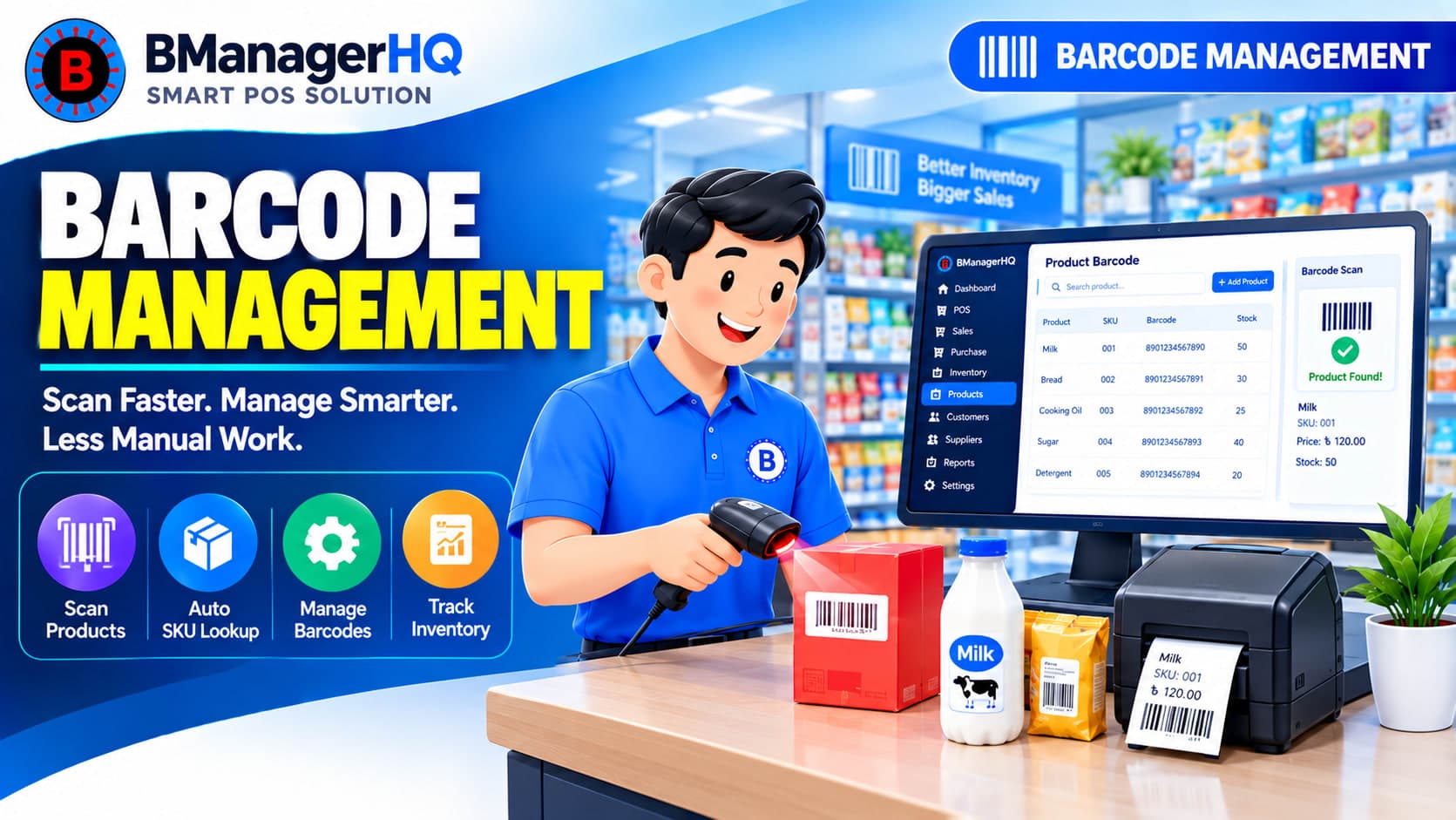
Scan product barcodes and create barcodes for products with BManagerHQ POS software. Speed up checkout, identify products quickly, and improve product and inventory management.
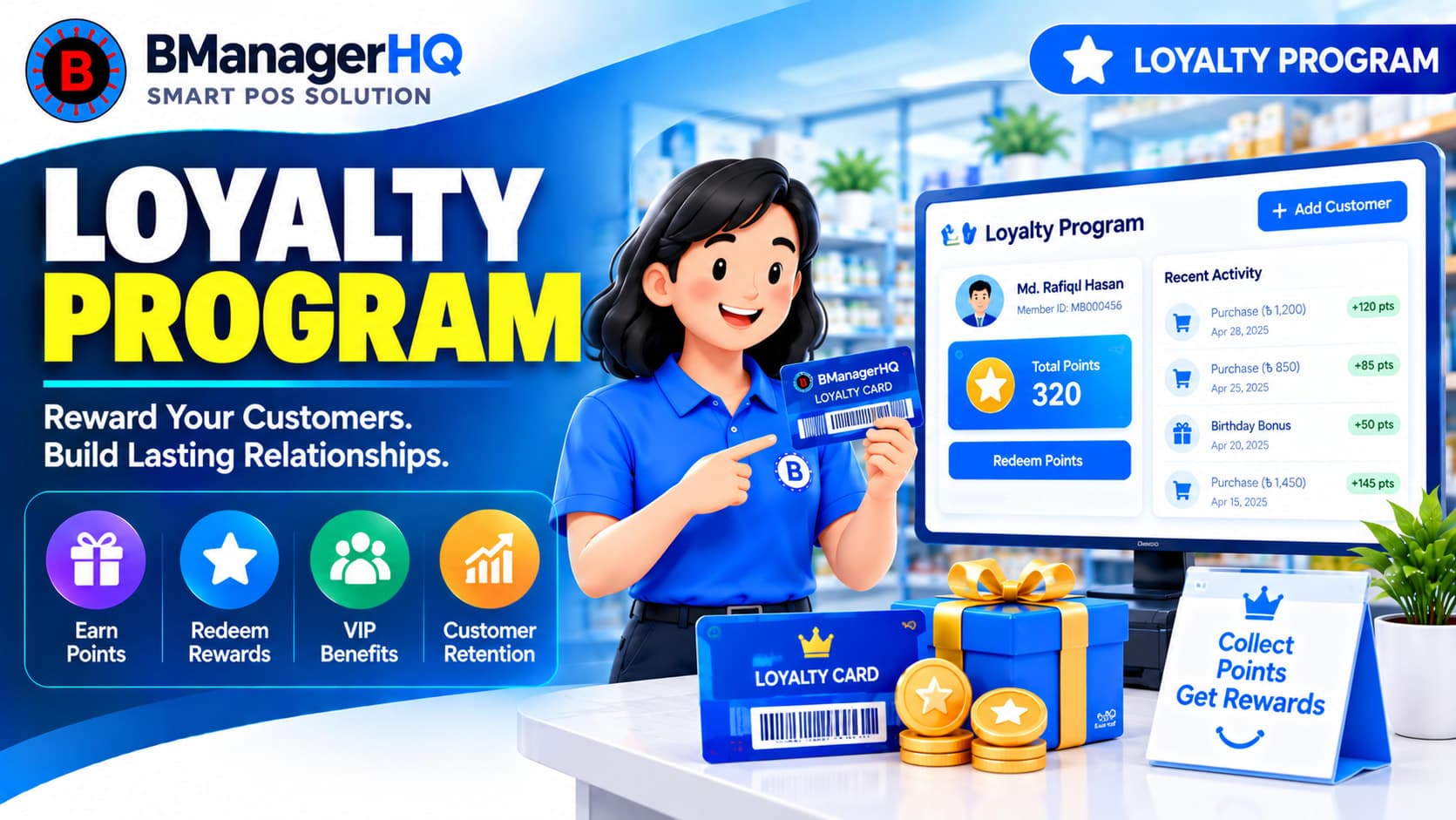
Manage customer loyalty programs with BManagerHQ POS software. Organize customer loyalty activities alongside sales, customer management, memberships, and promotions.
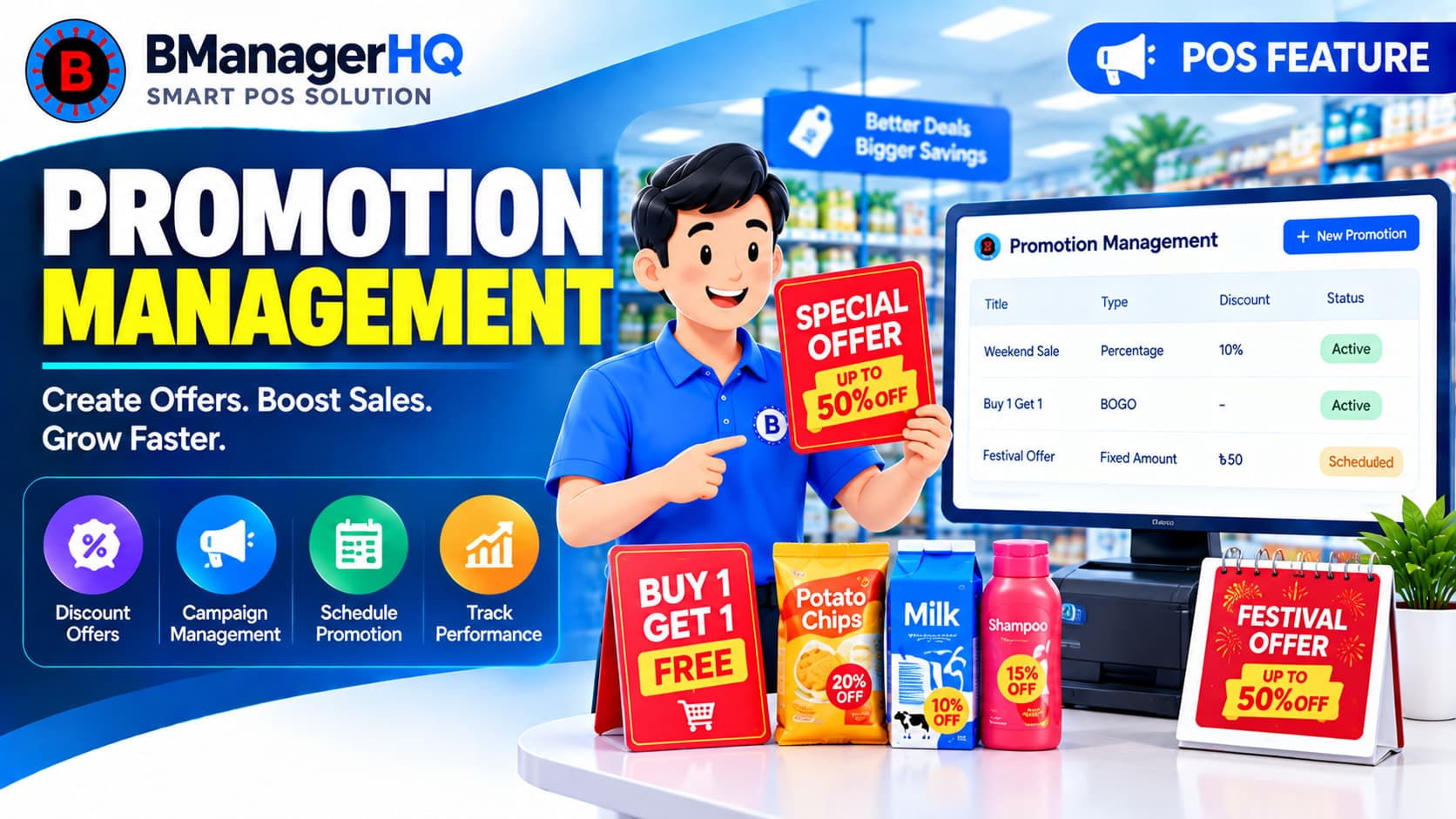
Create and manage product promotions with BManagerHQ POS software, including Bundle offers and Buy X Get Y promotions to increase sales and customer engagement.
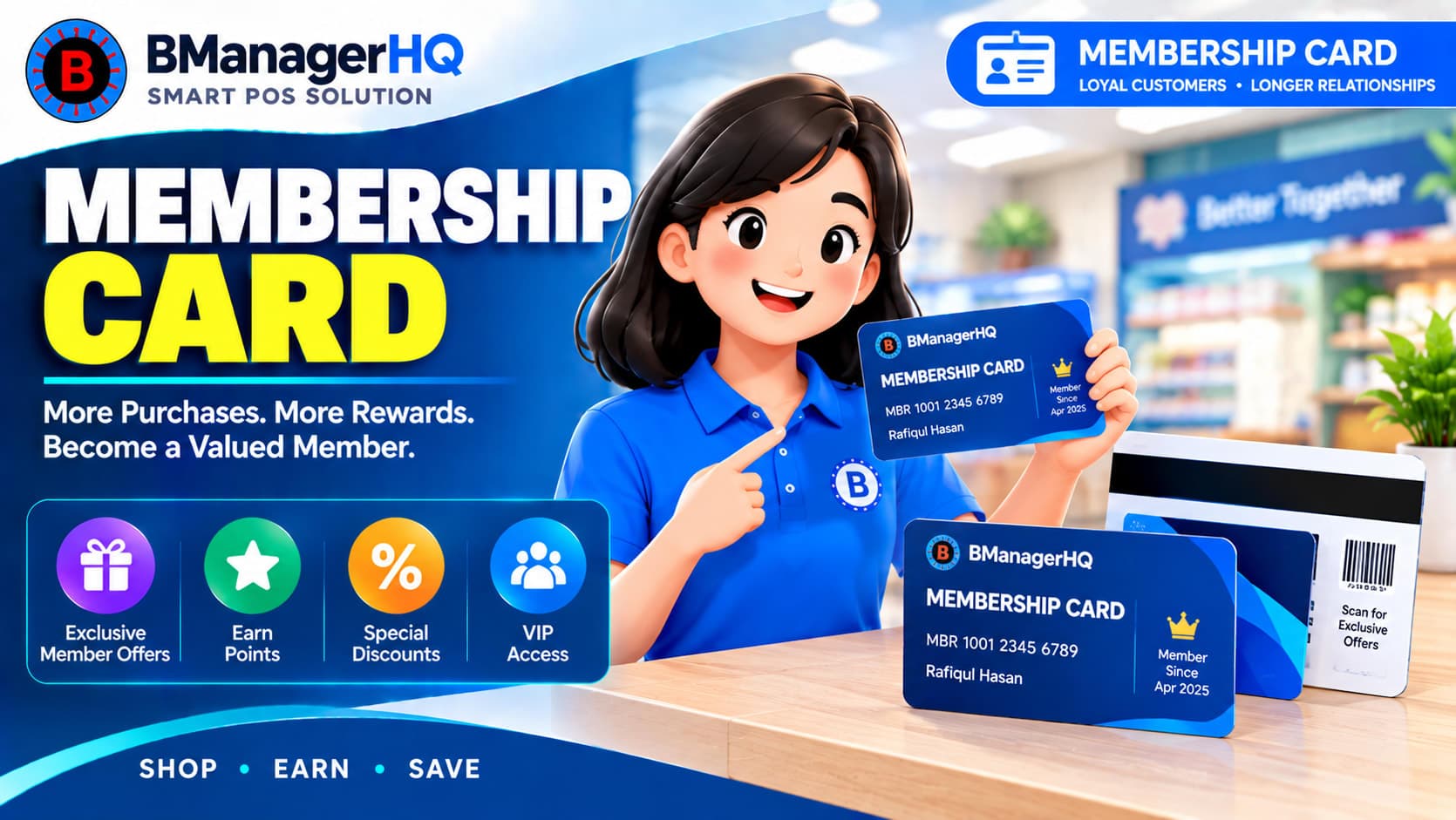
Manage customer membership cards with BManagerHQ POS software. Organize member information and connect membership functionality with customer and sales management.
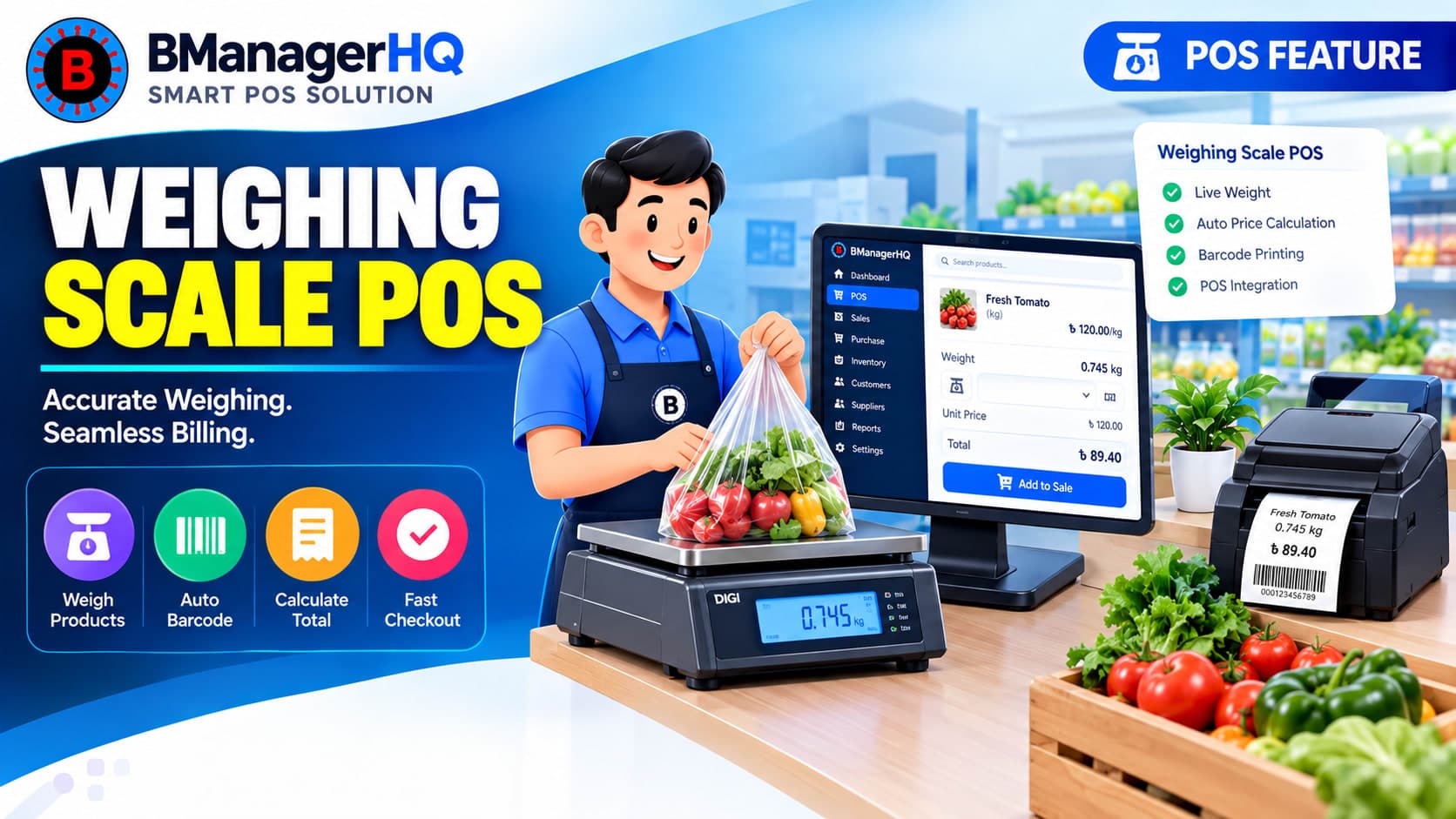
Connect weighing scale operations with your POS workflow using BManagerHQ. Manage weight-based products and streamline sales for grocery, retail, Super Shop and other businesses.