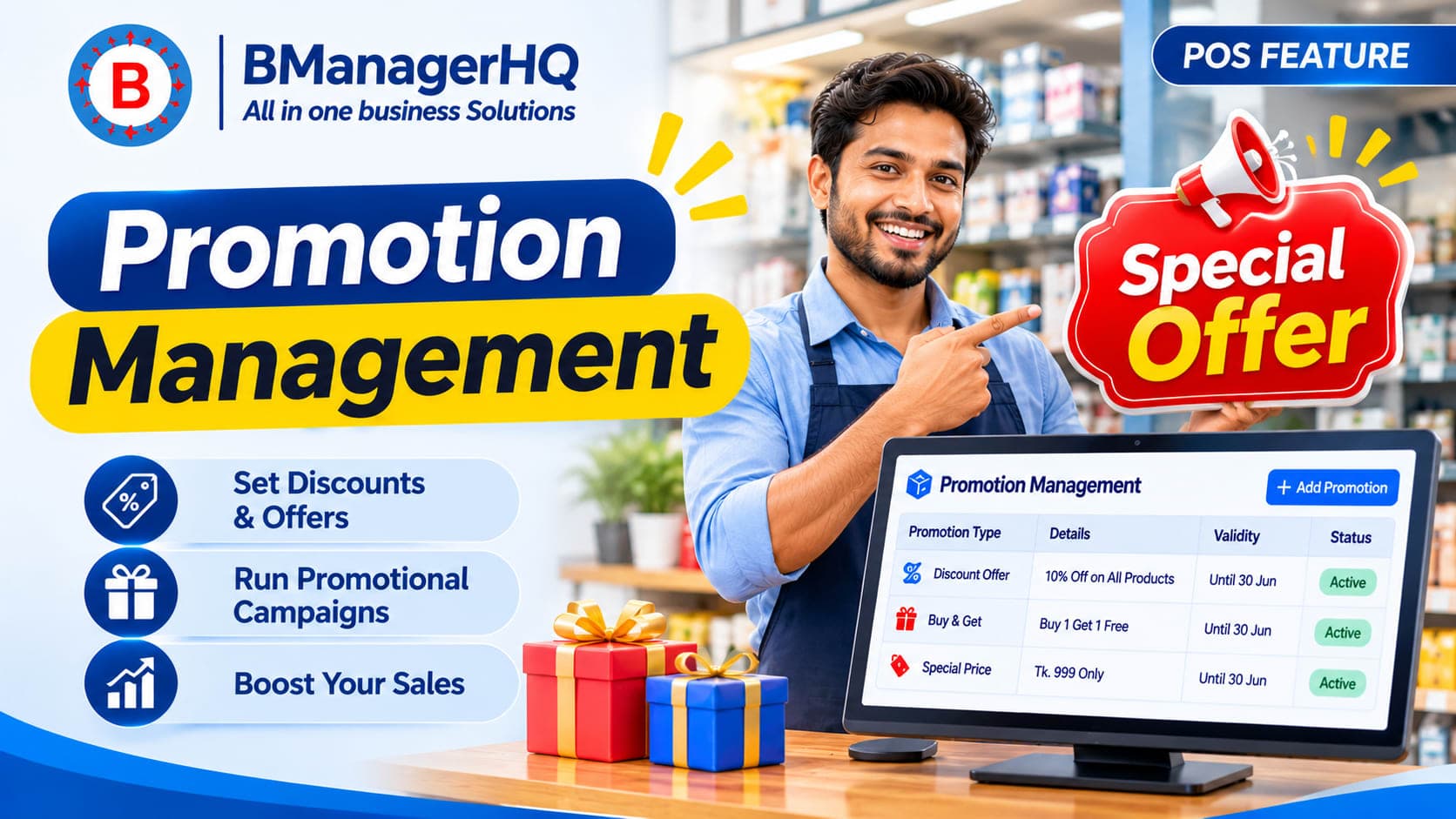
Promotions can help retailers run targeted offers while keeping sales and inventory activity within their point-of-sale workflow. BManagerHQ POS promotion management lets authorized users configure percentage and fixed-amount discounts, coupon-code promotions, bundles, and Buy X Get Y offers.
This guide explains how to configure promotions, set eligibility rules, and check offers during checkout. Some promotion options, such as coupon codes and Buy X Get Y, depend on the features enabled in POS Settings.
Promotion Types in BManagerHQ
Choose a promotion type that matches the offer you want to run:
Percentage discount: Reduce the eligible amount by a configured percentage.
Fixed-amount discount: Apply a set amount off eligible products or sales.
Coupon promotion: Let a customer enter a coupon code during checkout. Coupon promotions use a fixed-amount discount.
Bundle promotion: Group products into a bundle with a configured bundle price.
Buy X Get Y: Offer an additional quantity when a customer purchases the required quantity of an eligible product.
For example, a store might offer a percentage discount on selected products, a coupon for a fixed amount off, a shirt-and-trouser bundle, or a Buy 5, Get 1 offer on a product.
BManagerHQ’s promotion setup includes Discount, Coupon, Bundle, Buy X Get Y, and Cashback promotion types. Percentage and fixed amount are discount formats; they are not separate promotion types. Some options depend on what is enabled in POS Settings.
Percentage or Fixed-Amount Discount
Choose Discount as the promotion type, then select Percentage or Fixed Amount. Enter the discount value and choose what it applies to, such as selected products, all products, or the cart total. You can also configure eligible categories or brands when those options are enabled.
Coupon-Code Promotion
Choose Coupon, enter a coupon code, and set the discount amount. Coupon promotions use a fixed-amount discount. At checkout, the cashier enters the code and the POS checks whether it is valid for the sale.
Bundle Promotion
Choose Bundle and add the products and quantities to include. Set the bundle price, then save the offer. At checkout, use the configured bundle for eligible products.
Buy X Get Y Promotion
Choose Buy X Get Y, enter the required purchase quantity and the additional quantity, and select the eligible product. For example, configure Buy 5, Get 1. This promotion type must be enabled in POS Settings.
Cashback Promotion
In BManagerHQ, a Cashback promotion currently applies a discount to the eligible sale at checkout. You can configure it as a percentage or fixed-amount discount and set applicable promotion rules.
For example, a 10% Cashback promotion on ৳1,000 of eligible items reduces the current bill by ৳100.
Before You Create a Promotion
Make sure promotions are enabled for your POS organization. An administrator can open POS → POS Settings → Promotions Settings to turn on the promotions system and configure available promotion options.
Depending on your setup, the settings include a maximum percentage discount and controls for coupon codes, Buy X Get Y promotions, and category- or brand-based promotions. If an option is disabled, it may not be available when creating or applying a promotion.
How to Create a POS Promotion
Open POS → Promotions.
Select Add Promotion.
Enter a promotion name and, if useful, a description.
Choose the promotion type and discount type.
Configure the offer value and eligible products or sales.
Set any applicable customer, branch, date, time, purchase, or usage conditions.
Save the promotion.
The available fields depend on the selected promotion type. For example, coupon promotions require a coupon code, while Buy X Get Y promotions use quantity settings.
Set Discount Value and Eligibility
For a percentage promotion, enter the percentage to apply. The organization’s maximum discount setting can limit the percentage used at checkout. For a fixed-amount promotion, enter the discount amount.
Choose which sales the promotion applies to. Depending on the enabled options, eligibility can include:
All products
Specific products, including selected variants or tracked batches and serials
Specific categories
Specific brands
Cart total
You can also configure minimum purchase amounts, minimum quantities, and a maximum discount amount when those settings apply to the promotion.
Create Coupon-Code Promotions
To create a coupon offer, choose Coupon as the promotion type and enter a coupon code. Coupon promotions use a fixed-amount discount.
At checkout, the cashier enters the code in the coupon field. The POS checks whether the coupon is valid and whether the promotion’s configured conditions apply. If the code is invalid, inactive, outside its validity period, or otherwise ineligible, the POS indicates that it cannot be applied.
N:B: Coupon-code promotions must be enabled in POS Settings.
Create Bundle and Buy X Get Y Offers
A Bundle combines products into one offer at a configured bundle price. For example, a retailer could group a shirt, trousers, and belt into a single bundle.
A Buy X Get Y promotion gives the customer an additional quantity after they meet the configured purchase quantity. For example, a store could offer Buy 5, Get 1 on an eligible product. Configure the required and additional quantities, then select the applicable product rules. Buy X Get Y must be enabled in POS Settings.
N:B: Coupon-code promotions must be enabled in POS Settings.
Configure Promotion Rules
Promotion rules help determine when an offer can be used. Depending on the promotion, you can configure:
Start and end dates
Valid days and times
Eligible branches
Customer types
Minimum purchase amount or quantity
Maximum discount amount
Total usage limit
Per-customer usage limit
Promotion priority
Check the rules carefully before saving. A promotion may not apply if the sale does not meet its product, branch, customer, timing, purchase, or usage conditions.
Apply and Check Promotions at POS Checkout
Open a cashier session and process the sale through the POS sales screen. Add the products to the cart and select the customer, if applicable. Eligible promotions are evaluated against the sale and the promotion rules.
For a coupon offer, enter the code in the coupon field and review its validation status. Before completing the sale, confirm that the displayed promotion and discount are correct.
Promotions are also connected to the POS sales and inventory workflow. Sales processed with promotional items continue through the normal transaction process.
Troubleshooting Promotion Issues
If a promotion or coupon does not apply, check the following:
Is the promotions system enabled in POS Settings?
Is the relevant feature enabled—for example, coupon codes or Buy X Get Y?
Is the promotion active and within its start and end dates?
Does the selected branch and customer type meet the configured rules?
Are the cart products eligible?
Has the minimum purchase amount or quantity been met?
Has the total or per-customer usage limit been reached?
Is the coupon code entered correctly?
If the promotion still does not apply, review its settings and confirm that the sale meets all configured conditions.
Manage POS Promotions With BManagerHQ
Create discounts, coupon offers, bundles, and Buy X Get Y promotions as part of your POS workflow. Explore BManagerHQ POS pricing and start a 30-day free trial—no payment required.
BManagerHQ supports percentage discounts, fixed-amount discounts, coupon-code promotions, bundles, and Buy X Get Y promotions. Some options depend on POS Settings.
Can I create a coupon for a percentage discount?
Coupon promotions use a fixed-amount discount. Use a standard discount promotion if you want to configure a percentage discount.
Can promotions apply only to selected products?
Yes. Depending on the promotion, you can target all products, specific products, categories, brands, or the cart total. Category- and brand-based promotions must be enabled in POS Settings.
Can I limit a promotion to certain branches or customers?
Promotion rules can include eligible branches and customer types. Configure these conditions when creating or editing the promotion.
Can I set a promotion schedule or usage limit?
Promotions can have start and end dates, valid days and times, and total or per-customer usage limits. Other conditions, such as minimum purchase and discount caps, may also be available depending on the promotion type.
Why is my coupon code not applying?
Check that coupon codes are enabled, the code matches the coupon promotion, the promotion is active, and the sale meets its configured eligibility rules and limits.
Scan product barcodes and create barcodes for products with BManagerHQ POS software. Speed up checkout, identify products quickly, and improve product and inventory management.